Getting Started
Welcome to the MATE Portal — your single home for everything TMT. Your programs, your trading journal, live MetaTrader sync, and your AI trading coach all live in one place, and what you see is tailored to the programs you're part of.
This guide gives you the lay of the land: what the portal does, how access works, and where to go next based on your program.
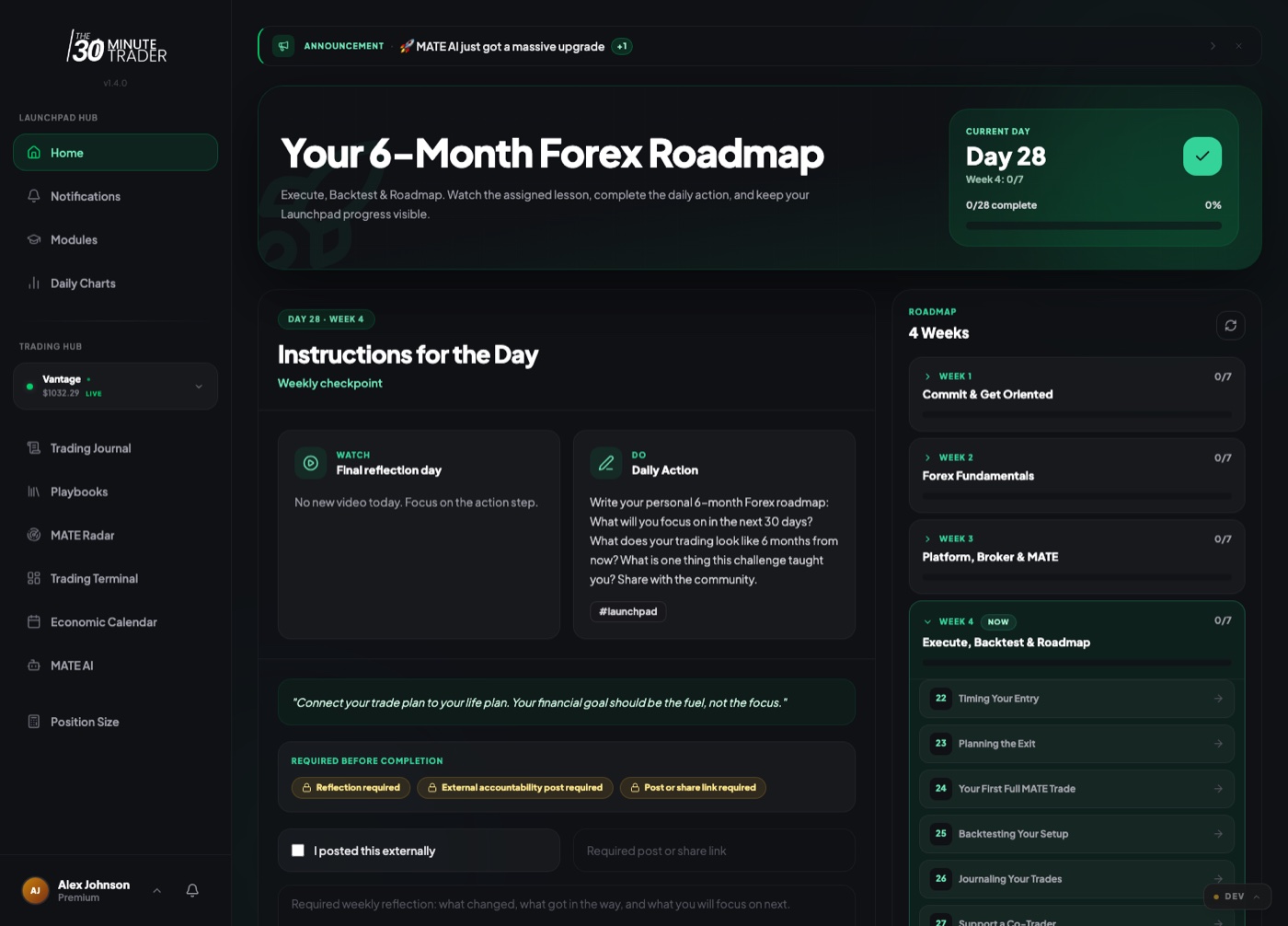
Jump straight to the 3-minute quickstart below, or open the guide for your program: Starter, Premium, Activate, or Launchpad.
What the MATE Portal is
The portal brings the whole TMT experience under one login. Depending on your access, you'll find:
- Your program — learning content, modules, assignments, and dashboards for Starter, Premium, Activate, or Launchpad.
- A trading journal & analytics — log trades, tag setups, review performance, and attach chart evidence.
- Live MetaTrader sync — connect a real MT4/MT5 account and have your trades and balances sync automatically.
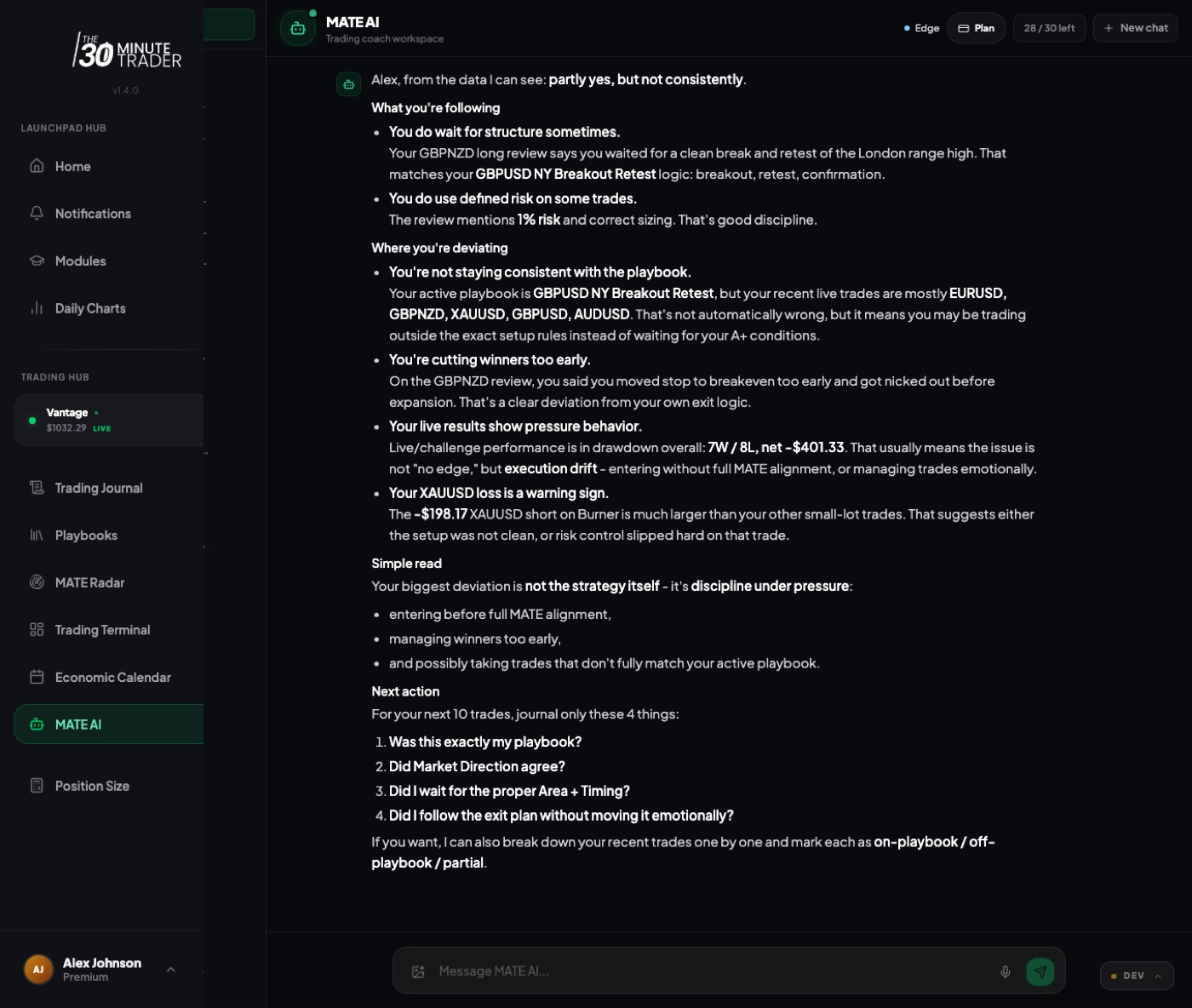
- MATE AI — an in-portal trading coach that can see your context and help you work through your trading day.
- Everyday essentials — events, notifications, support, and account settings.
You don't need all of these on day one. The portal grows with you as you enroll in programs and connect accounts.
How access works
Access is built in two layers, and understanding the difference saves a lot of confusion later.
When you first sign up you land on Starter — the free baseline. Enrolling in a paid program unlocks that program's hub, content, and tooling on top of Starter. If a program's access window ends, your learning content stays, but the portal benefits for that program return to Starter limits unless another paid program is active.
Use the Program Picker (and Switch Program) to move between the programs you have access to. Some programs may appear locked, sold out, or apply-only — that reflects enrollment availability, not a problem with your account.
See Your Programs for the full breakdown of enrollment, switching, and what each program includes.
Which program am I?
Not sure which guide applies to you? Match your access below.
You can be in more than one at once — the portal routes you to the right hub and lets you switch between them.
The tools everyone shares
Some tools work the same way across every program, just with different limits:
- Trading Accounts & Sync — manual journal accounts and live MetaTrader sync, the account switcher, and the sync monitor.
- MATE AI — your AI coach. What it can see and how often you can use it depends on your program and tier, but the core experience is shared.
Quickstart
Here's the fastest path from sign-up to a working setup.
- Log in to the portal at app.thethirtyminutetrader.com. New accounts start on Starter automatically.
- Find your home. If you're enrolled in a program, you'll land in its hub. On Starter, explore the Starter Home and Library.
- Connect a trading account. Add a manual journal account to start logging, or connect a MetaTrader account for automatic live sync. See Trading Accounts & Sync.
- Open MATE AI and ask it something about your trading. It works across every program — see MATE AI for what it can do.
You don't have to do these in order. Many traders connect an account first so MATE AI has real context to work with from day one.
Where to go next
Logging in, your profile, notifications, and settings.
How enrollment, access windows, and switching programs work.
Manual journals, MetaTrader live sync, and the sync monitor.
Your AI trading coach — what it can do and how access works.
Need a hand?
If something here doesn't match what you see in the portal, your program or account state may differ — check Your Programs first. For anything else, reach the team through the Support option inside the portal.
This Help Center is actively being built out. Program sections marked as drafts are still being written — this overview is complete and current.