Accounts & Sync
Your trading accounts are the foundation of everything you do in MATE Portal. The journal, analytics, terminal, and trade review all read from the account you have selected. This page explains the two kinds of accounts you can add, how to connect one, how to move between them, and how syncing keeps your data up to date.
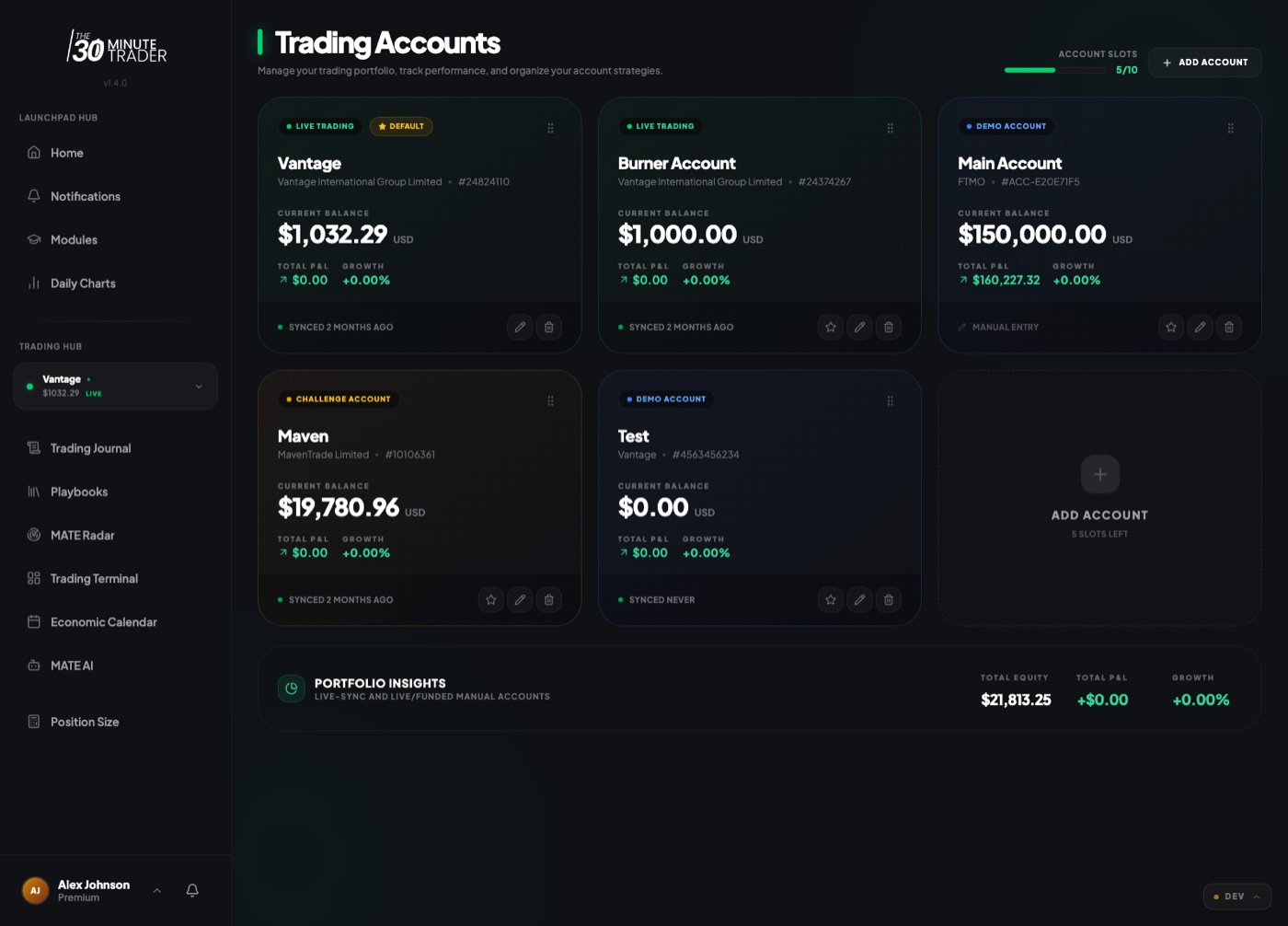
Two kinds of accounts
When you add an account, you choose how it gets its data:
- Manual journal account. You log each trade yourself. Use this when you want to record results from any source — a broker MATE Portal does not connect to, a prop-firm dashboard, or your own notes. You enter the trade details and outcomes; nothing is pulled in automatically.
- MetaTrader live-sync account. You connect a MetaTrader 4 or MetaTrader 5 account and MATE Portal imports your closed trades for you. Once connected, your trade history, balance, and performance update from the platform without manual entry.
Each account also carries a type — such as live, demo, challenge, or funded — that's shown as a badge on the account card and in the account detail view.
When you connect a MetaTrader account, your credentials are encrypted and used only to read your trade history. MATE Portal does not place, modify, or close trades on your behalf. You can use your platform's investor (read-only) password if your broker offers one.
Connecting a MetaTrader account
To add a live-sync account, open Trading Accounts, choose Add Account, and pick the live sync connection. You'll then provide your broker connection details:
- Platform — choose MetaTrader 5 (MT4 support is rolling out).
- Broker — search and select your broker from the list.
- Server — pick the exact server your broker assigned you. Copy this precisely from your MT4/MT5 login screen, since the wrong server will prevent the connection.
- Account number and password — your login number and password (the investor / read-only password works well here).
If you select a challenge or funded account, you'll also be asked for the rule details for that account so MATE Portal can track them for you.
Connect the broker and server that genuinely belong to you. Don't use VPNs, false residency, or a broker that isn't available in your country.
When you finish onboarding, MATE Portal runs a first sync right away so you get fast confirmation that your details work. After that, how often it syncs depends on your program (see below).
The account switcher and account detail
If you have more than one account, the account switcher at the top of your trading screens shows the account you're currently viewing — its name, connection type, and balance. Open it to:
- See all your accounts at a glance, each marked Live Sync or Manual.
- Switch the active account; the journal, terminal, and analytics immediately reflect it.
- Reorder accounts by dragging, and jump to Manage Accounts.
Selecting an account and opening its detail view gives you a focused dashboard for that account: current balance, total P&L, win rate, drawdown, and other performance stats, plus a quick link into the Journal for its full trade history. Live-sync accounts also get an Open Terminal shortcut. From here you can edit the account or refresh its stats.
On the Trading Accounts screen, a meter in the header shows how many account slots you're using. When you reach your program's limit, an upgrade prompt appears in place of the next slot.
Sync status and "last synced"
For live-sync accounts, the sync panel tells you exactly where things stand:
- Ready to sync, Queued, Syncing your account…, or Sync complete as a sync runs.
- On completion, how many trades were imported.
- A Last synced timestamp so you always know how current your data is.
- A clear error message if a sync couldn't finish — for example, if the connection details need attention.
If a scheduled sync is the next thing that will happen, the panel also shows your Next sync time.
How syncing works on each program
How your live-sync accounts refresh depends on your MATE Portal program:
- Starter (free) accounts sync automatically once a day at an off-peak time. You don't have to do anything — your account refreshes in the background, and the Next sync time tells you when. On-demand "Sync Now" is reserved for paid tiers, so on Starter the Sync Now button is shown locked. Starter also supports a limited number of accounts.
- Paid programs add on-demand sync — a Sync Now button you can press whenever you want fresh data — and room for more accounts.
We keep the exact account limits and sync timing on each program's own page, since they can change. See your program page for the specifics.
Even on Starter, the very first sync when you connect an account runs immediately, so you get instant confirmation that your broker details are correct. The once-a-day schedule applies to refreshes after that.
Chart evidence and imported trades
For both kinds of accounts, you can attach chart evidence to a trade in your journal — paste a chart image or a link (for example, a TradingView snapshot) so your reasoning and the setup are saved alongside the result. This works whether you logged the trade by hand or it was imported by live sync.
For live-sync accounts, imported trades flow straight into your journal and analytics. You review them there exactly as you would manual entries — tag setups, add notes, and attach chart evidence — while the trade facts themselves come from your platform.