Economic Calendar
The Economic Calendar lists upcoming and recent market-moving news — central bank decisions, jobs reports, inflation prints, and more — so you know when high-impact events are due before you place a trade. Volatility tends to spike around these releases, and knowing the schedule ahead of time helps you decide whether to trade through the news, tighten risk, or stand aside.
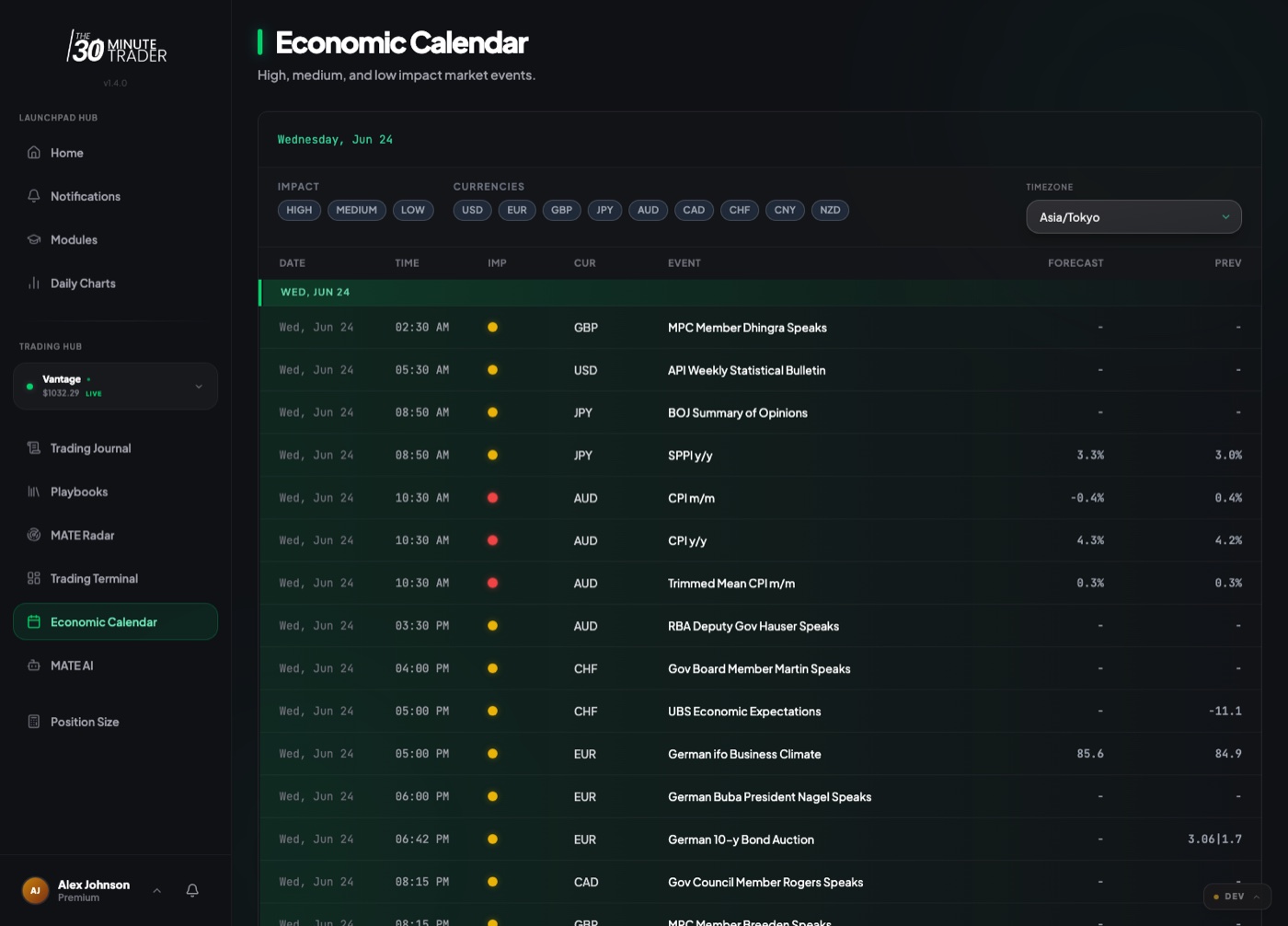
How to read a row
Each row is a single scheduled event. Reading left to right:
- Date and time — when the release is due, shown in the timezone you select (see below). Events are grouped under a date heading, and today's events float to the top of the list.
- Impact — a colored dot for how much the event tends to move markets: red for high impact, amber for medium impact, and yellow for low impact. High-impact events are the ones most likely to cause sharp price swings.
- Currency — the currency the release affects (for example USD, EUR, or JPY). A US jobs report carries a USD tag; an ECB decision carries EUR.
- Event — the name of the release, with a status tag showing whether it's still Upcoming or already Released.
- Forecast and Previous — the Forecast is what analysts expect, and Previous is the last reading. Comparing the two tells you whether the market is bracing for a change. Once a result is published, the Actual value appears so you can see whether it beat or missed the forecast.
A dash (-) simply means that value isn't available yet.
Filtering by impact and currency
The filters across the top let you cut the list down to what matters for your trading:
- Impact — tap High, Medium, or Low to show only events at that level. Most traders watch high-impact events most closely. You can select more than one.
- Currencies — tap the currencies you trade (USD, EUR, GBP, JPY, AUD, CAD, CHF, CNY, NZD) to hide everything else. If you only trade USD pairs, filter to USD and the noise disappears.
- Status — narrow to Upcoming or Released events when you want to focus on what's still ahead or review what already happened.
Filters stack, so you can combine them — for example, high-impact USD events only. Tap a filter again to turn it off; with no filters selected, every event shows.
Setting your timezone
Times only help if they match your day. Use the Timezone selector to pick the zone you trade in, and every date and time on the calendar shifts to match. Available zones include UTC, several US zones (New York, Chicago, Los Angeles), Europe (London, Frankfurt), Arabian Standard Time, Asia (Tokyo, Hong Kong), and Australia (Sydney).
Set this once to whatever your trading day is anchored to, and you'll be able to tell at a glance whether a release lands during your session or while you're away.
Using it to plan around news
A simple routine before each session:
Open the calendar, filter to the currencies you trade and to high impact, and note the times of any releases due during your session.
With that in hand you can plan deliberately — avoid opening new positions in the minutes around a high-impact release, tighten stops if you're already in a trade, or wait for the volatility to settle before you act. The calendar updates on its own while it's open, so the times and results stay current.
Where to find it
The Economic Calendar is available across programs. It also appears as an optional widget on your learning hub — you can turn it on or off from your account settings under the toggle labeled "Economic Calendar." See Your Account to manage your preferences.